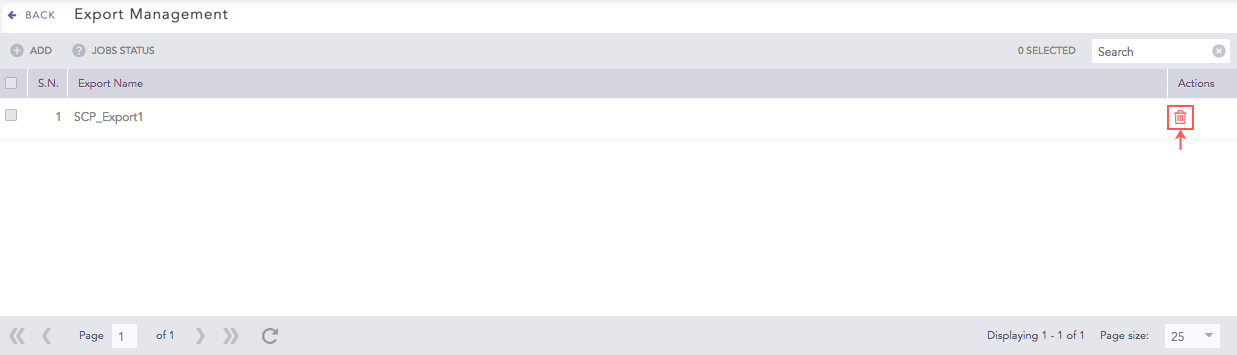
Export Management allows you to export raw logs from Search results to a target (storage location) placed on a remote machine. Export Management is only available for simple search queries and not for aggregated queries.
Important
Export Management is disabled in Data Privacy Module enabled systems.
Export Management is not available in SaaS.
You can create a target either by using Secure Copy Protocol (SCP) or File Transfer Protocol (FTP). Before configuring Export Management, you need to create a target. To create a target:
Go to Settings >> Configuration from the navigation bar and click Export Management.

Adding a Target
Click Add. Here, you have an option to add the target using either SCP protocol or FTP protocol as per your requirement.
For SCP:
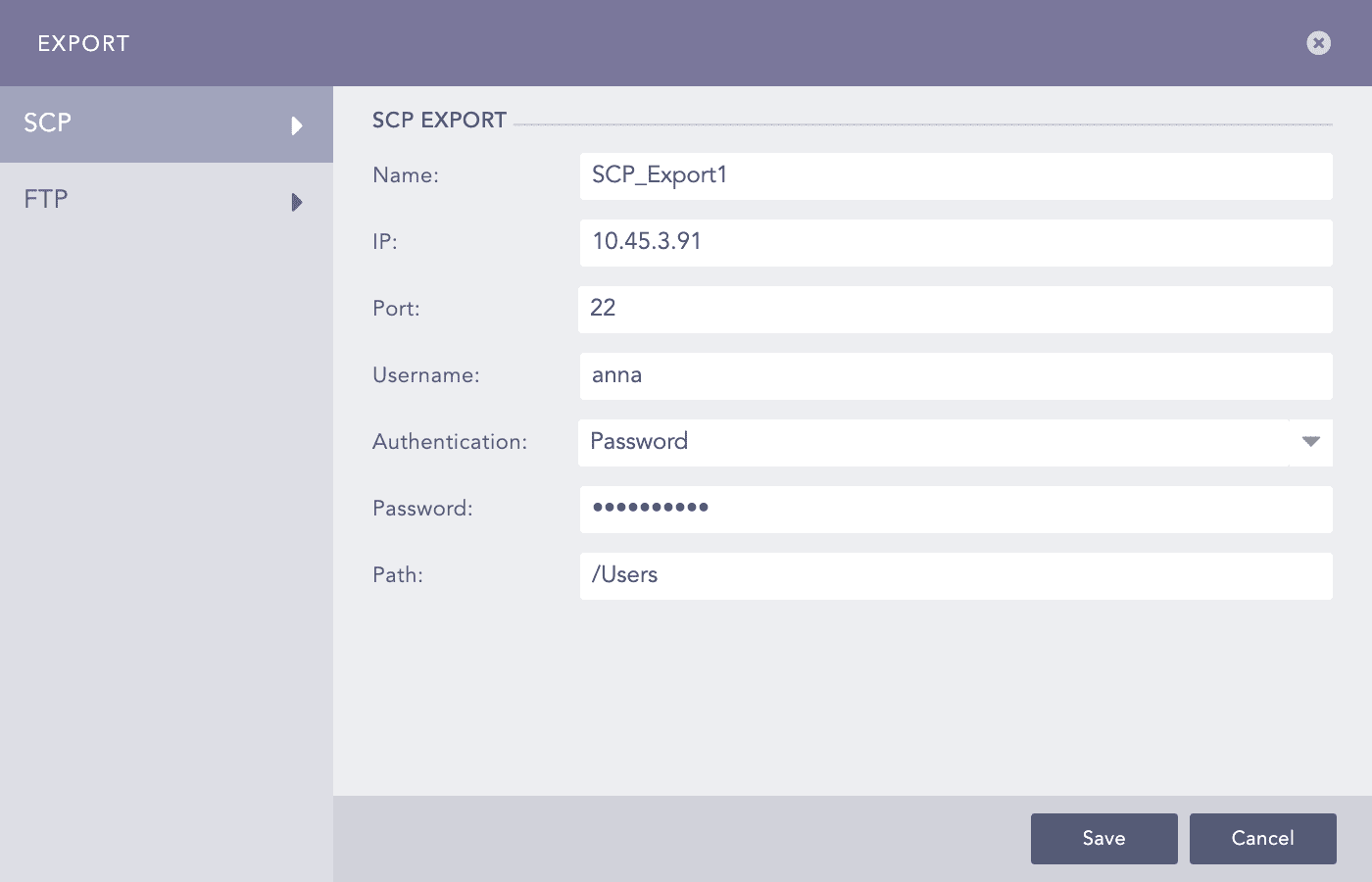
Adding SCP Export
Provide a Name.
Specify the IP address of the remote machine.
Enter a Port number.
Provide the Username.
Select an Authentication mechanism.
If you selected Password, enter the Password for authentication.
If you selected SSH Certificate, copy the provided key and add it to authorized keys in the remote machine.
Specify the Path in the target machine.
For FTP:
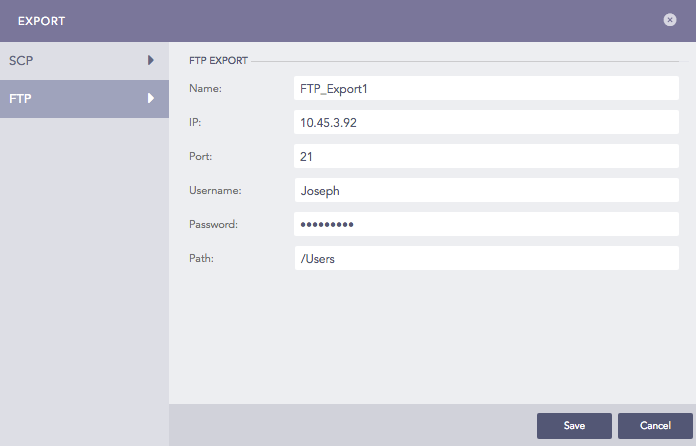
Adding FTP Export
Provide a Name of the export file.
Specify a valid IP address of the remote machine.
Enter a Port number.
Provide the Username and Password recognized by the given IP address.
Specify the Path of the target.
Click Save.
Once you create and configure a target, you can access it via the Export Logs option under the More drop-down from the Search menu. The names of the created targets are populated in the drop-down menu under Search >> More >> Export Logs >> Target. Now, you can export the search results of any search query to any target as per the requirement.
Note
Please refer to the Export Logs in the Search Guide for further details.
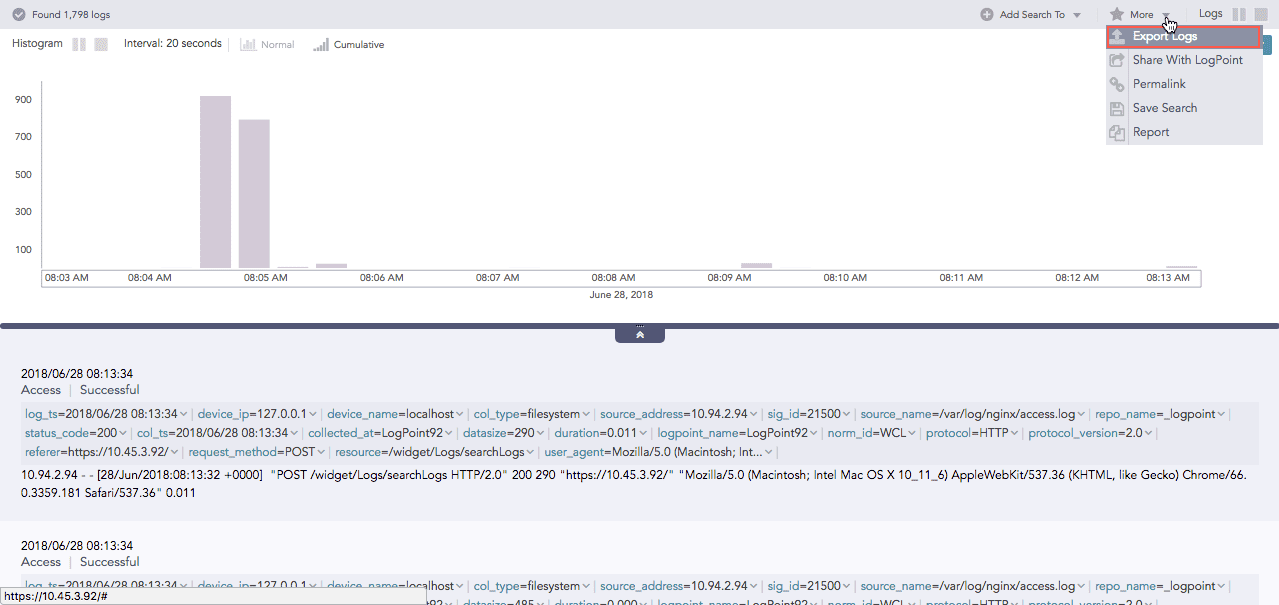
Exporting Logs
Note
If you have configured SCP Export, multiple lines of the same log are counted as different logs. Therefore, the number of logs in the search results is different from the number of exported logs.